
Screen recording
Screen recording app
1. Core features
1.1 Screen recording
- Real-time screen capture using Android MediaProjection API
- MP4 video encoding through MediaRecorder
- Recording start/pause/continue/end control
- Countdown overlay before recording (select 0 seconds / 3 seconds / 5 seconds)
1.2 Floating button (overlay)
- Recording can be controlled even while using other apps with the circular button floating on the screen.
- Button display by status:
- IDLE: 1 red record button
- RECORDING: 1 blue standby button
- PAUSED: Green continue button + red end button
- Location can be moved by dragging (position automatically saved)
- Transparency setting: Only the 'Standby' button applies the user setting during recording, the rest is 100% opaque.
1.3 Save recorded files
- Display integrated save dialog when recording ends
- Enter file name (default: ScreenRec_date_time)
- [Save]: Return to standby state after saving the file
- [Exit]: Save the file and close the app
- [Cancel]: Return to standby state without saving
- Save location: Movies/ScreenRecorder folder
- Utilize API 30+ MediaStore / Save legacy files below API 29
1.4 Settings
- Video Settings
- Resolution: 720p / 1080p / Native (device resolution)
- Bitrate: 2 Mbps / 4 Mbps / 8 Mbps
- Frame rate: 24 FPS / 30 FPS / 60 FPS
- Audio Settings
- Microphone recording ON/OFF
- General Settings
- Countdown: None / 3 seconds / 5 seconds
- Floating button transparency: 0~100% (SeekBar + +/- buttons)
1.5 Notification Control
- Pause/continue/end control available from status bar notification during recording
- Prevent system shutdown with foreground service notifications
화면 녹화 앱 사용설명서
목차
1. 앱 설치 및 시작
지원 기기
- 대상 기기: Samsung Galaxy Note 8 (SM-N950N)
- Android 버전: Android 9 (Pie) 이상
앱 실행
- 앱 아이콘 "화면 녹화"를 터치하여 실행합니다.
- 최초 실행 시 필요한 권한을 요청합니다.
2. 권한 설정
앱이 정상적으로 동작하려면 아래 권한이 필요합니다.
| 권한 | 용도 | 필수 여부 |
|---|---|---|
| 화면 캡처 | 화면을 녹화하기 위한 MediaProjection | 필수 |
| 다른 앱 위에 표시 | 플로팅 버튼 표시 | 필수 |
| 마이크 | 녹화 시 소리 녹음 | 선택 (설정에서 ON/OFF) |
| 알림 | 녹화 상태 알림 표시 | 필수 (Android 13+) |
권한 허용 방법
- 앱 실행 시 자동으로 권한 요청 팝업이 나타납니다.
- "다른 앱 위에 표시" 권한은 시스템 설정 화면으로 이동하여 직접 허용해야 합니다.
- 권한을 거부하면 해당 기능이 제한될 수 있습니다.
3. 메인 화면
앱을 실행하면 메인 화면이 표시됩니다.
화면 구성
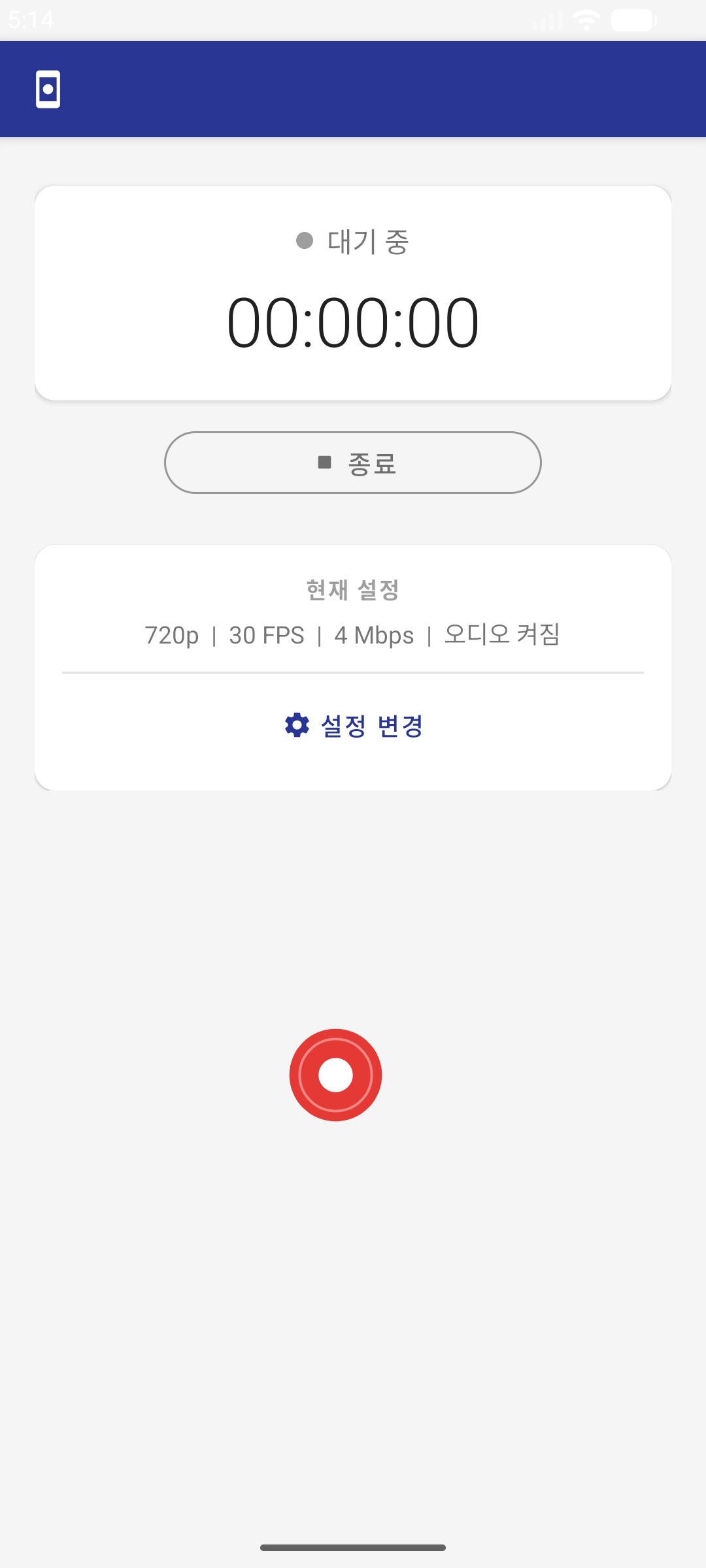
| 영역 | 설명 |
|---|---|
| 상태 표시 | 현재 녹화 상태 (대기 중 / 녹화 중 / 일시정지) |
| 타이머 | 녹화 경과 시간 (시:분:초) |
| 종료 버튼 | 대기 상태에서 앱 종료 |
| 현재 설정 | 해상도, FPS, 비트레이트, 오디오 상태 표시 |
| 설정 변경 | 설정 화면으로 이동 |
4. 화면 녹화하기
4.1 녹화 시작
- 앱 실행 후 화면 왼쪽 상단에 표시되는 빨간색 플로팅 버튼(●)을 터치합니다.
- 최초 1회 "화면 캡처 허용" 팝업이 나타나면 "지금 시작"을 터치합니다.
- 설정된 카운트다운(3초/5초) 후 녹화가 시작됩니다.
- 녹화가 시작되면:
- 타이머가 작동하기 시작합니다.
- 플로팅 버튼이 파란색 대기 버튼으로 바뀝니다.
- 메인 화면에 [일시정지]와 [종료] 버튼이 표시됩니다.
4.2 일시정지 / 계속
- 일시정지: 녹화 중 메인 화면의 [⏸ 일시정지] 버튼 또는 플로팅 버튼의 [계속] 버튼 좌측을 터치합니다.
- 계속 녹화: 일시정지 상태에서 [▶ 계속] 버튼을 터치하면 녹화가 재개됩니다.
4.3 녹화 종료
- 메인 화면의 [■ 종료] 버튼 또는 플로팅 버튼의 [종료] 버튼을 터치합니다.
- 녹화가 중지되고 저장 다이얼로그가 나타납니다.
5. 플로팅 버튼 사용법
플로팅 버튼은 화면 위에 떠 있는 원형 버튼으로, 다른 앱을 사용하면서도 녹화를 제어할 수 있습니다.
5.1 상태별 버튼
| 상태 | 버튼 모양 | 동작 |
|---|---|---|
| 대기 | 🔴 빨간 원형 버튼 1개 | 터치 → 녹화 시작 |
| 녹화 중 | 🔵 파란 원형 버튼 1개 | 터치 → 일시정지 |
| 일시정지 | 🟢 초록 + 🔴 빨간 버튼 2개 | 초록 → 계속 / 빨간 → 종료 |
5.2 버튼 이동
- 플로팅 버튼을 길게 터치한 채 드래그하면 원하는 위치로 이동할 수 있습니다.
- 이동한 위치는 자동 저장되어 다음에도 같은 위치에 표시됩니다.
5.3 투명도
- 녹화 중 '대기' 버튼만 설정에서 지정한 투명도가 적용됩니다.
- 그 외 버튼(녹화, 계속, 종료)은 항상 100% 불투명하게 표시됩니다.
- 투명도는 설정 > 플로팅 버튼 투명도에서 0~100% 사이로 조절할 수 있습니다.
6. 녹화 파일 저장
녹화를 종료하면 저장 다이얼로그가 나타납니다.
6.1 저장 다이얼로그
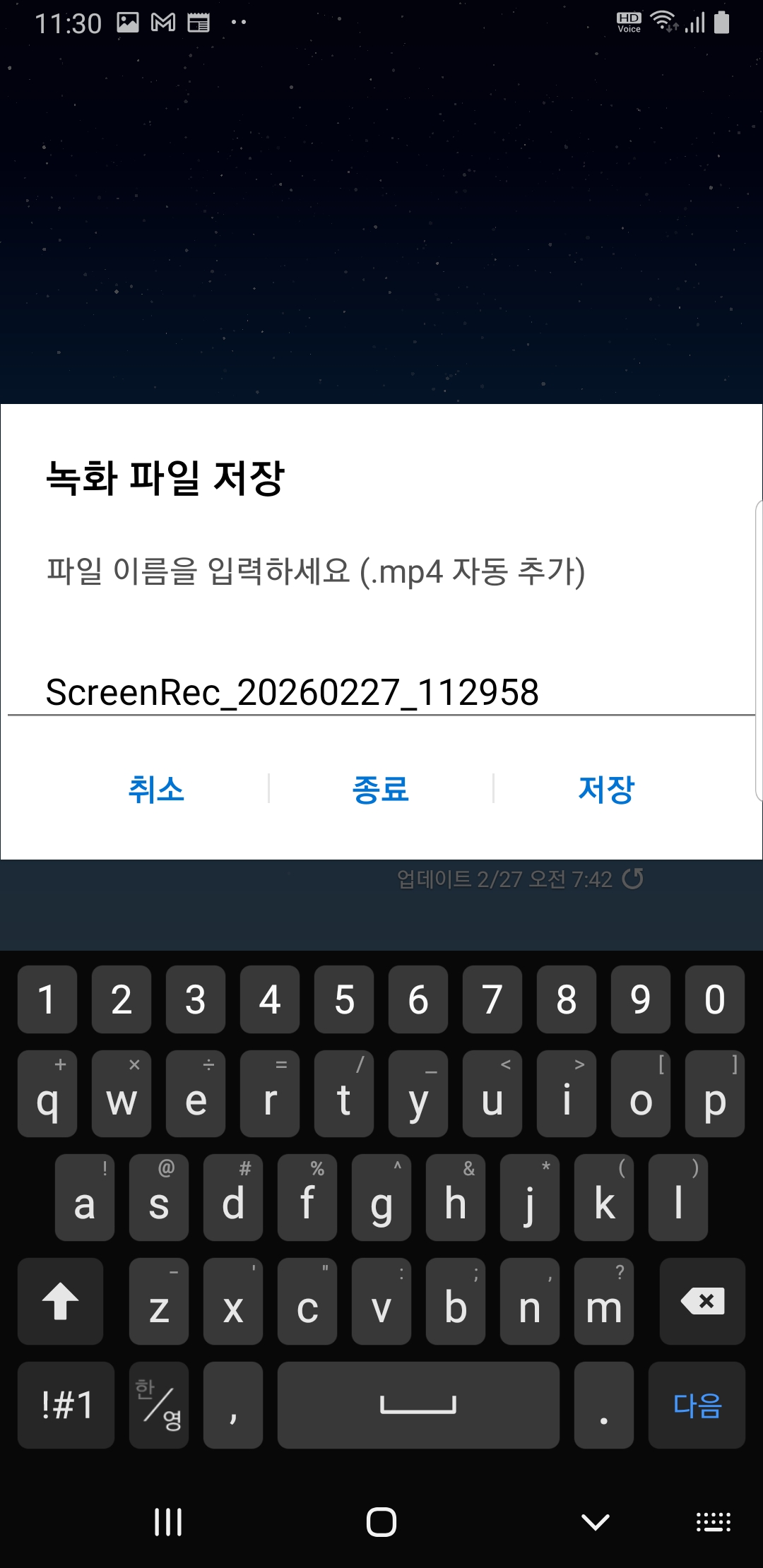
6.2 버튼 동작
| 버튼 | 동작 |
|---|---|
| 저장 | 입력한 이름으로 파일 저장 후 대기 상태로 복귀 |
| 종료 | 입력한 이름으로 파일 저장 후 앱 종료 |
| 취소 | 파일을 기본 이름으로 저장하고 대기 상태로 복귀 |
6.3 저장 위치
- Movies/ScreenRecorder 폴더에 MP4 파일로 저장됩니다.
- 파일명을 변경하지 않으면 기본 이름
ScreenRec_날짜_시간.mp4으로 저장됩니다. - 이름 입력 시
.mp4확장자는 자동으로 추가됩니다.
7. 설정 변경
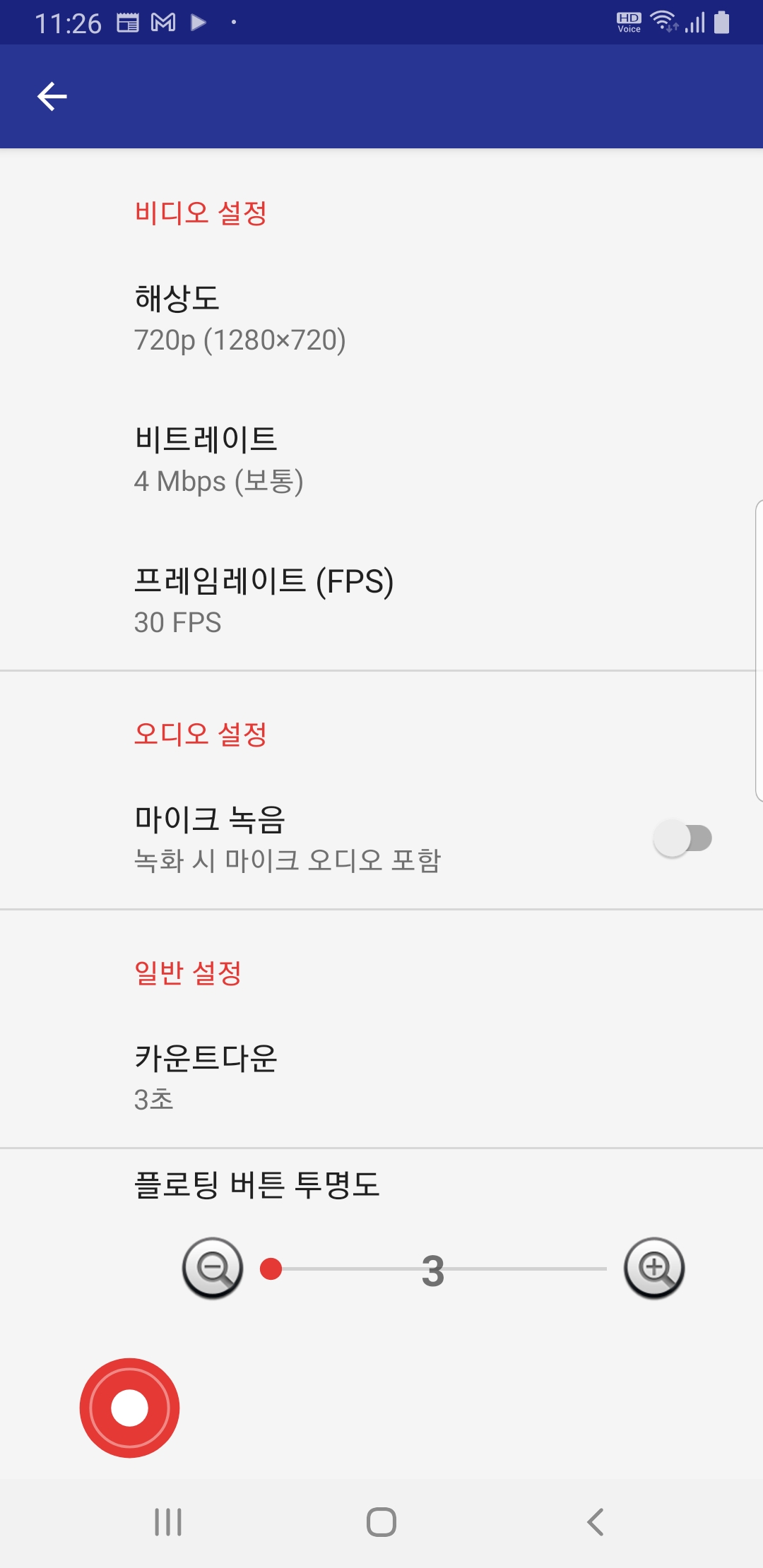
메인 화면의 "⚙ 설정 변경" 버튼을 터치하면 설정 화면으로 이동합니다.
7.1 비디오 설정
| 항목 | 선택지 | 기본값 | 설명 |
|---|---|---|---|
| 해상도 | 720p / 1080p / 네이티브 | 720p | 높을수록 화질 좋음, 파일 크기 증가 |
| 비트레이트 | 2 Mbps / 4 Mbps / 8 Mbps | 4 Mbps | 높을수록 화질 좋음, 파일 크기 증가 |
| 프레임레이트 | 24 FPS / 30 FPS / 60 FPS | 30 FPS | 높을수록 부드러움, 파일 크기 증가 |
7.2 오디오 설정
| 항목 | 선택지 | 기본값 | 설명 |
|---|---|---|---|
| 마이크 녹음 | ON / OFF | OFF | ON 시 마이크 소리도 함께 녹음 |
7.3 일반 설정
| 항목 | 선택지 | 기본값 | 설명 |
|---|---|---|---|
| 카운트다운 | 없음 / 3초 / 5초 | 3초 | 녹화 시작 전 카운트다운 시간 |
| 플로팅 버튼 투명도 | 0~100% | 100% | 녹화 중 대기 버튼의 투명도 |
7.4 설정 권장값
| 용도 | 해상도 | 비트레이트 | FPS | 비고 |
|---|---|---|---|---|
| 일반 녹화 | 720p | 4 Mbps | 30 | 용량 절약, 충분한 화질 |
| 고화질 녹화 | 1080p | 8 Mbps | 30 | 선명한 화질 |
| 게임 녹화 | 720p | 8 Mbps | 60 | 부드러운 움직임 |
8. 알림바 제어
녹화 중에는 상태바에 알림이 표시되며, 알림에서 직접 녹화를 제어할 수 있습니다.
알림 동작
| 알림 버튼 | 동작 |
|---|---|
| 일시정지 | 녹화 일시정지 |
| 계속 | 일시정지 해제, 녹화 재개 |
| 종료 | 녹화 종료 → 저장 다이얼로그 표시 |
9. 자주 묻는 질문 (FAQ)
Q1. 녹화 파일은 어디에 저장되나요?
A. 내장 저장소 > Movies > ScreenRecorder 폴더에 MP4 파일로 저장됩니다.
Q2. 플로팅 버튼이 보이지 않아요.
A. 설정 > 앱 > 화면 녹화 > "다른 앱 위에 표시" 권한을 확인해 주세요.
Q3. 녹화 중 소리가 녹음되지 않아요.
A. 설정 > 오디오 설정 > "마이크 녹음"을 ON으로 변경해 주세요. 마이크 권한도 허용되어 있어야 합니다.
Q4. 녹화가 자동으로 종료돼요.
A. 저장 공간이 100MB 미만이면 녹화가 시작되지 않습니다. 저장 공간을 확보해 주세요.
Q5. 플로팅 버튼이 화면에서 방해가 돼요.
A. 플로팅 버튼을 드래그하여 원하는 위치로 이동하거나, 설정에서 투명도를 낮춰주세요 (녹화 중 대기 버튼에만 적용).
Q6. 카운트다운을 없앨 수 있나요?
A. 설정 > 일반 설정 > 카운트다운 > "없음"을 선택하면 바로 녹화가 시작됩니다.
Q7. 녹화 파일 이름을 변경할 수 있나요?
A. 녹화 종료 시 나타나는 저장 다이얼로그에서 원하는 이름을 입력할 수 있습니다. .mp4 확장자는 자동 추가됩니다.
Q8. 다른 앱을 사용하면서 녹화할 수 있나요?
A. 네. 플로팅 버튼으로 녹화를 시작하면 다른 앱으로 이동해도 녹화가 계속됩니다. 플로팅 버튼으로 일시정지/종료를 제어할 수 있습니다.
본 문서는 화면 녹화 앱 v1.0.0 기준으로 작성되었습니다.
Privacy Policy
Last Updated: 2026-02-26
Korean
1. Overview
This privacy policy explains how the Screen Recorder app (“App”) collects, uses, and protects your personal information.
This app provides the ability to record the screen on your device and save it as a video file. This app does not use an internet connection and does not transmit any data to external servers.
2. Information we collect
This app creates and stores the following data only on your device:
- Screen Recording Video: When the user starts recording, the screen content is saved as an MP4 video.
- Microphone Audio (Optional): Microphone audio will be included in the video only if the user has enabled audio recording in settings. The default is disabled.
- App Settings: User settings such as resolution, frame rate, and bit rate are saved in SharedPreferences on the device.
This app does not collect the following information:
- Personal identification information such as name, email, phone number, etc.
- Location information
- Device unique identifier
- Data from other apps, such as contacts, photos, messages, etc.
- Usage statistics or analytics data
3. App permissions and purpose of use
| Permissions | Purpose of use |
|---|---|
| Screen Recording (MediaProjection) | Capture screen content and save as video |
| Microphone (RECORD_AUDIO) | Record voice when user activates (optional) |
| Show above other apps (SYSTEM_ALERT_WINDOW) | Show floating control buttons during recording |
| NOTIFICATIONS (POST_NOTIFICATIONS) | Display recording status and control buttons as notifications |
| foreground service | Continue recording even when the app is in the background |
| Storage access (Android 9 and below) | Save the recording file to your device |
4. Data storage and security
- All recorded files are saved locally only in the
Movies/ScreenRecorderfolder on your device. - The app does not use Internet permissions and does not transmit any data to external servers, clouds, or third parties.
- App backup is disabled (
allowBackup="false") to prevent data leakage to cloud backup.
5. Data sharing
This app does not share your data with anyone.
- We do not sell, trade, or transfer your data to third parties.
- We do not use advertising networks, analytics tools, or other third-party services.
6. Third party services
This app does not use any third party services (Firebase, Google Analytics, advertising SDK, etc.).
7. Data retention and deletion
- Users have full control over the retention period of their recordings.
- Recorded files can be deleted at any time through the device's file manager or gallery app.
- When you delete an app, the app settings are removed. Recording files are in the device's public storage and must be deleted separately.
8. Protection of children’s personal information
This app does not intentionally collect personal information from children under 13 years of age. This app does not collect any personally identifiable information, so there is no risk of children's personal information being collected.
9. Changes to personal information processing policy
If there are changes to this privacy policy, we will update this page and update the “last modified date.” If there are any important changes, we will notify you through app updates.
10. Contact information
If you have any questions or requests regarding this Privacy Policy, please contact us below.
- Email: kimsangki@gmail.com
- Developer: Kim Sangki