
Magnifier is an app that turns your smartphone camera into a real-time magnifying glass.
When small text is hard to read or you need to examine fine details, the Magnifier app is all you need.
Key Features:
- Real-time Camera Zoom: Magnify the camera view in real time and use it just like a magnifying glass.
- Pinch to Zoom: Spread two fingers on the screen to smoothly zoom in and out.
- Button Zoom: Use the +/- buttons on the right side of the screen to precisely adjust the magnification level.
- Flashlight: Turn on the flashlight to magnify even in dark environments.
- Photo Capture: Save the magnified view as a photo.
- Screen Always On: The screen stays on while the app is in use.
Recommended for:
- Those who have difficulty reading small text
- Those who want to check fine details such as medication ingredients or nutrition labels
- Those who do detailed work such as sewing or crafting
- Those who want to observe insects, plants, and more up close
With a simple and intuitive UI, anyone can use it with ease.
Magnifier User Manual
App introduction
Magnifier is an app that uses your smartphone camera as a real-time magnifying glass. You can easily enlarge and view small text, nutritional information, and detailed parts.
Screen composition
When you run the app, the camera screen is displayed in full screen, and each function button is overlaid on the screen.
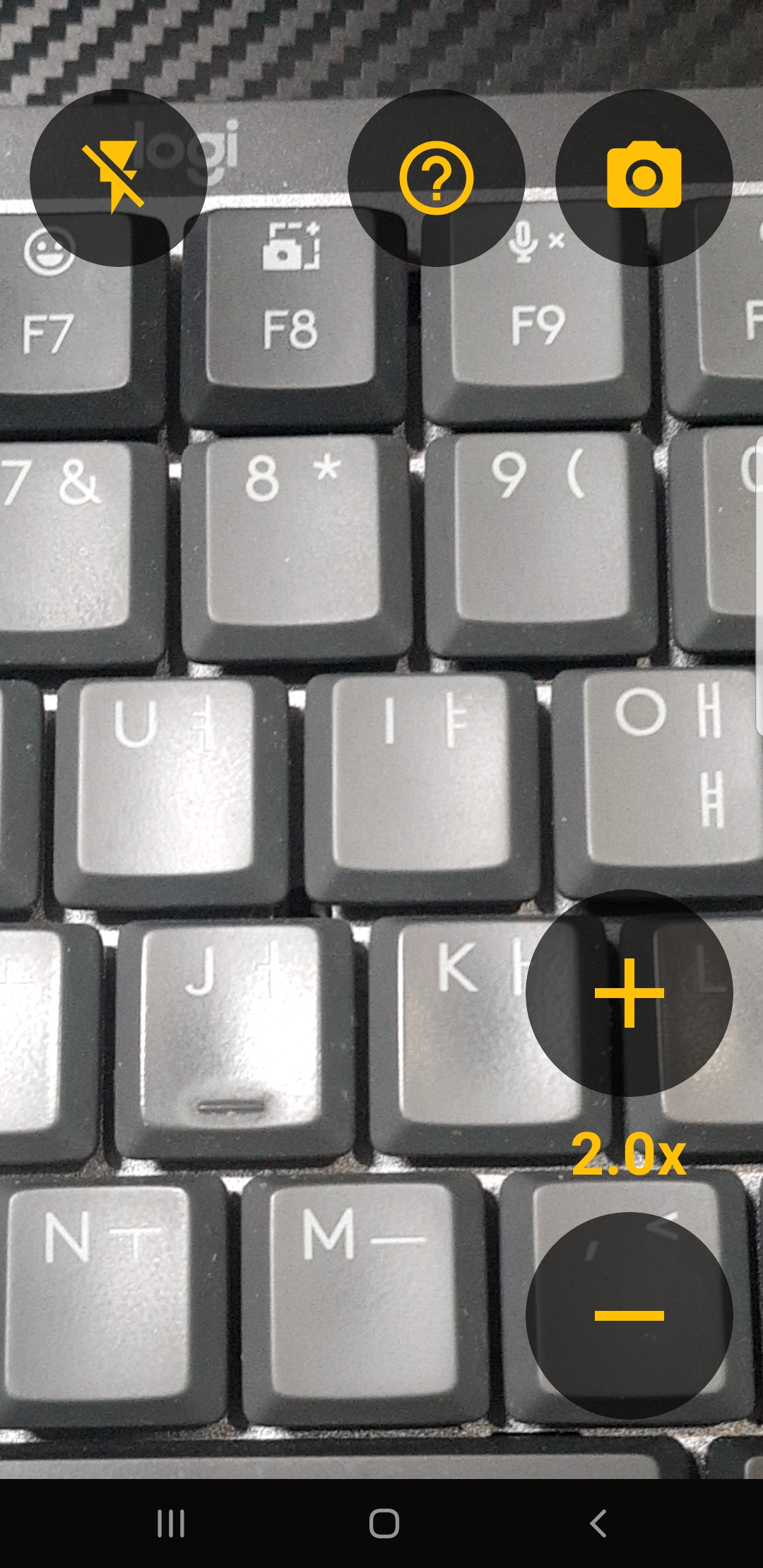
How to use each function
1. Real-time zoom (camera zoom)
The object the camera illuminates is magnified in real time and displayed on the screen. When you run the app, it starts with the default 2.0x magnification.
Two ways to zoom in/out:
Pinch zoom (operate with your finger)
- Place two fingers on the screen and spread them out to zoom in and pinch them in to zoom out.
- You can smoothly adjust the magnification to your preference.
+/- buttons zoom (bottom right of screen)
- [+] Button: Magnifies by 0.5x each time you press it.
- [-] Button: Zooms out by 0.5x each time you press it.
- The middle number (e.g.
3.5x) indicates the current multiplier. - The magnification range depends on the device camera (typically 1.0x to 10.0x).
2. Flashlight (top left of screen 🔦)
Used to check the target in a dark place.
- Tap the icon once to turn on the flashlight (lightning icon is filled).
- Touch again to turn off the flashlight (lightning icon with a diagonal line).
- The flashlight uses the flash LED on the back of the device.
💡 Tip: When reading small text, such as medication labels or nutritional information labels, in the dark, it is convenient to turn on the flashlight and enlarge it.
3. Take a photo (top right of the screen 📷)
You can save the enlarged screen as a photo.
- Touch the camera icon once to take a photo with a shutter sound.
- Taken photos are automatically saved in the Gallery > Pictures > Magnifier folder on your device.
- When saving is complete, the message “Photo has been saved” will be displayed at the bottom of the screen.
- File name format:
Magnifier_20260221_143052.jpg(shooting date_time)
4. Homepage (top right of screen ❓)
- Touch the question mark icon to open the app homepage in your web browser.
- You can check app-related notices, usage instructions, inquiries, etc.
Set permissions on first run
When you first run the app, it will ask for permission to access your camera.
- Select “Allow” and the camera screen will be displayed immediately.
- If you select “Reject”:
- A “Camera access permission is required” message appears on the screen.
- You can request permission again by pressing the "Grant Camera Permission" button.
- Alternatively, you can grant permission directly in the device settings by pressing the "Open Settings" button.
Other Features
| Features | Description |
|---|---|
| Prevent screen from turning off | The screen does not turn off automatically when using the app |
| Fixed portrait mode | Even if you rotate your device, the screen will always be displayed vertically |
| Dark theme | Uses default dark theme to reduce eye strain |
Supported devices
- Android 7.0 (Nougat) or higher
- Devices with a rear camera
Contact us
If you encounter any problems while using the app or have any suggestions, please contact us below.
- Email: [sangkipm@gmail.com]
Privacy Policy
Magnifier - Camera Magnifying Glass (hereinafter referred to as "the App") values users' personal information and complies with applicable laws and regulations.
Last updated: February 20, 2026
1. Personal Information Collected
This App does not directly collect or store any personal information on its servers.
2. Device Permissions
This App uses the following device permissions:
- Camera (Required): Accesses the rear camera to provide the real-time magnifier feature. The camera feed is displayed only on the device screen and is not transmitted externally.
- Storage (Used only on Android 9 and below): Used to save captured photos to the device gallery.
3. Advertising
This App displays advertisements through Google AdMob. AdMob may collect advertising IDs and device information to serve ads. For more details, please refer to the Google Privacy Policy.
4. Third-Party Disclosure
This App does not provide users' personal information to third parties. However, the advertising service provider (Google) mentioned in Section 3 above may collect information in accordance with its own policies.
5. Data Retention
This App does not operate a separate server and does not collect or retain user data. Captured photos are stored only on the user's device.
6. Children's Privacy
This App does not intentionally collect personal information from children under the age of 13.
7. Changes to This Privacy Policy
If this policy is changed, notice will be provided through an app update or on this page.
8. Contact Us
If you have any questions regarding privacy, please contact us at the following:
- Email: [sangkipm@gmail.com]